Safari-TV Export Videos & TikTok: Save Clips, Photos & TV Fixes
Save in-game recordings and prepare TikTok clips from the camp TV on Windows, export phone photos, and fix stalled playback.
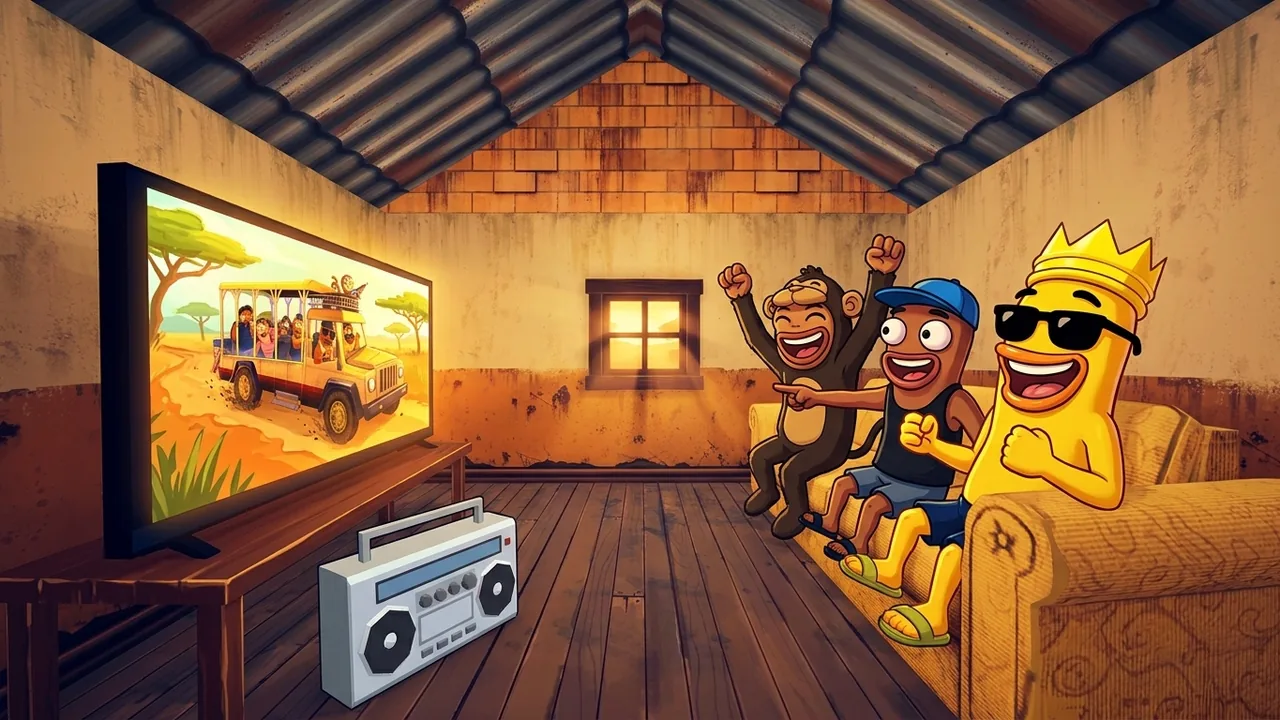
To save recordings in Safari-TV, finish watching the day’s footage at the camp TV on Windows and select “Save video” to choose a file name and folder, while phone snapshots export separately from the gallery to your Pictures / Safari-TV folder. Both “Save Video” and “Prepare for TikTok” are Windows-only actions that stay disabled behind a notice on SteamOS/Proton, though in-game recording and camp TV playback still work there.
For daily quotas, follower payouts, and clip scoring rules before you return to camp, read the filming and followers guide.
Saving Videos & Preparing Clips for TikTok at Camp TV
Back at camp, turn on the TV to watch the footage your crew recorded during the day. Once playback finishes, the save prompt offers to keep the video you just watched on your machine.
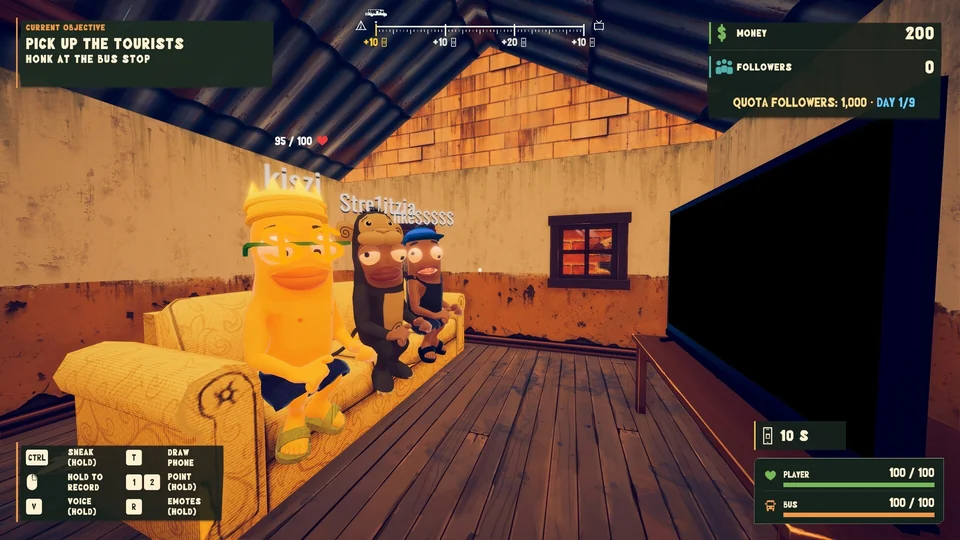
- Pick a file name and folder: Select “Save video” to choose where to store the clip and what to name it on your computer.
- Track or cancel the export: The TV displays a saving percentage while writing the file, lets you hit “Cancel saving” if you want to back out without writing a new file, and unlocks “Open folder” once the clip finishes.
- Check disk space on save errors: If writing fails, inspect the chosen folder and free drive space before retrying, because your older saved files remain untouched.
- Keep local copies intact: If a clip from the session is missing on your computer, that video cannot be saved, and moving or deleting a finished export later triggers a notice that the file was moved or removed.
Video saving and its social export buttons display a Windows-only notice when launched on unsupported operating systems. Steam Deck players keep phone recording plus a separate handheld playback backend for camp TV video and audio so clips avoid colour bars or muted sound; see the Steam Deck and FPS settings guide for display and frame-rate tweaks.
The game’s UI text also contains “TIKTOK REWARD” and “REWARD RECEIVED” labels tied to its TikTok reward prompt.
Exporting Photos from the In-Game Phone Gallery
Still pictures follow a separate workflow through your in-game phone rather than the camp television.
- Shoot photos with the phone camera: Open the phone’s Camera app and use “Take photo” to save stills straight into your gallery, using “Switch camera” for the front camera and “Zoom” to frame shots.
- Manage local gallery pictures: Photos stay stored on your device inside the Gallery app, where you can select “Send in SMS” to share them with teammates or choose “Export photo” to copy them out of the game.
- Find exported images on disk: Exporting places the saved picture inside your
Pictures / Safari-TVdirectory. - Handle storage notices: If photo storage is unavailable, reopen the Gallery app to retry, whereas an expired image displays “Photo no longer in gallery”.
Export Actions & Platform Availability
| Action | Platform support | Where to access | Output or behavior |
|---|---|---|---|
| Save video | Windows only | Camp playback prompt | Writes the watched clip to a chosen name and folder, then lets you open that folder |
| Prepare for TikTok | Windows only | Camp playback prompt | Active on Windows; blocked with a platform notice on SteamOS/Proton and non-Windows setups |
| Phone recording and TV playback | Windows and Steam Deck | Phone and camp television | Recording and playback stay available on Steam Deck through its dedicated TV backend |
| Export photo | Local device storage | Phone gallery | Copies a saved gallery picture into your Pictures / Safari-TV folder |
Recording Tips & Audio Gear for Shareable Clips
- Master quick phone controls: Use “Draw phone” to bring up the device, “Hold to record” while filming, “Switch camera” (which you can rebind to another key) for selfies, and “Zoom” to tighten framing before releasing to stop and holster.
- Hold through chaos: An active recording keeps rolling through falls and ragdolls as long as you keep holding the record button, and the current record key or controller button appears beside the remaining recording timer.
- Watch storage and sync locks: Recording stops if phone memory fills up, and you cannot start a new clip while a camp video exchange is underway.
- Carry vs. record: The
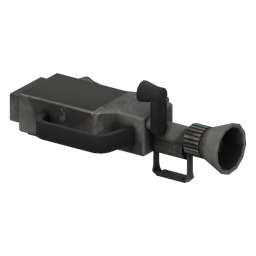 Video Camera item cannot be bought in the shop, and its description reminds you to carry the camera while recording actual footage on your phone.
- Focus on varied action: Keeping people and animals in frame while capturing reactions, movement, and conversation avoids low-interest warning labels at the TV (settlement never removes followers, and only returning with nothing recorded zeroes the day’s gain); browse all 44 goals on the filming tasks page and check every moment multiplier on the followers page.
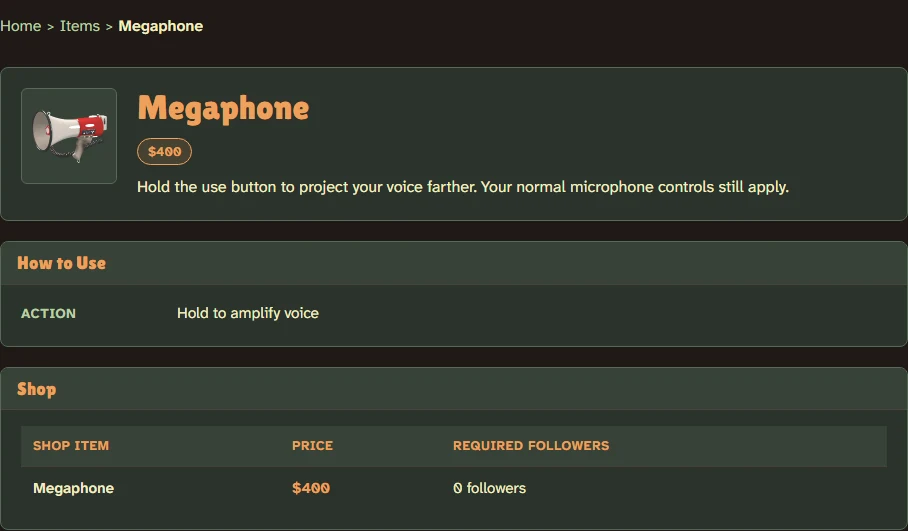
Two shop items let you add louder voice commentary or shared music tracks to your camp footage:
 Megaphone ($400): Hold the use button while carrying it to project your voice farther, while your regular microphone controls remain active.
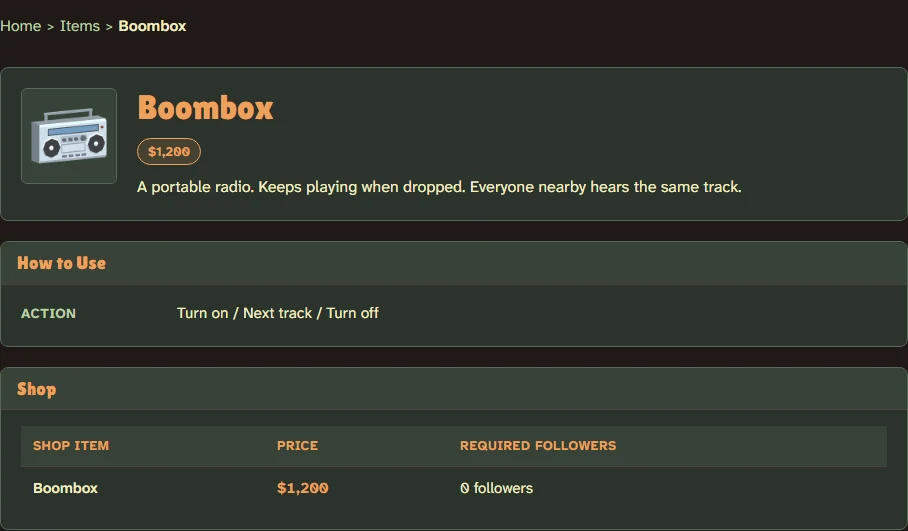
 Boombox ($1,200): Cycle through “Turn on / Next track / Turn off” on its six-track playlist, and drop the portable radio on the ground so it keeps playing the same track for everyone nearby.
Fixing Camp TV Sync & Stalled Video Uploads
Because camp playback shares clips across every connected crewmate before anyone can save a video, networking mismatches or slow uploads can pause the viewing screen.
- Gather up to 4 players at the TV: Up to 4 players can watch together, everyone must join the viewing at the camp television, and playback starts automatically once all viewers are ready.
- Avoid account and setting conflicts: Every crewmate needs a separate Steam account and matching video connection settings for clip synchronization to succeed.
- Wait until viewing ends before inviting friends: Mid-run joining stays temporarily closed while the crew watches videos at camp, so late teammates need to join before or after TV playback.
- Skip stalled downloads after 30 seconds: If transfers hang for 30 seconds while waiting for a connection or reconnecting source, the session leader can choose “Continue with available videos” so the group plays only clips received by every viewer, or ends the viewing if no clip is ready.
- Let missing-clip recovery and fallback decoding finish: Before playback starts, the client attempts to recover missing video copies and skips unrecoverable clips together so the remaining footage still runs, while Windows builds retry playback automatically and switch to a fallback decoder if standard playback fails.
For how camp playback fits into the full daily loop from boarding tourists to sleeping overnight, see the beginner’s guide.